Should You Auto-Update WordPress Plugins and Themes?
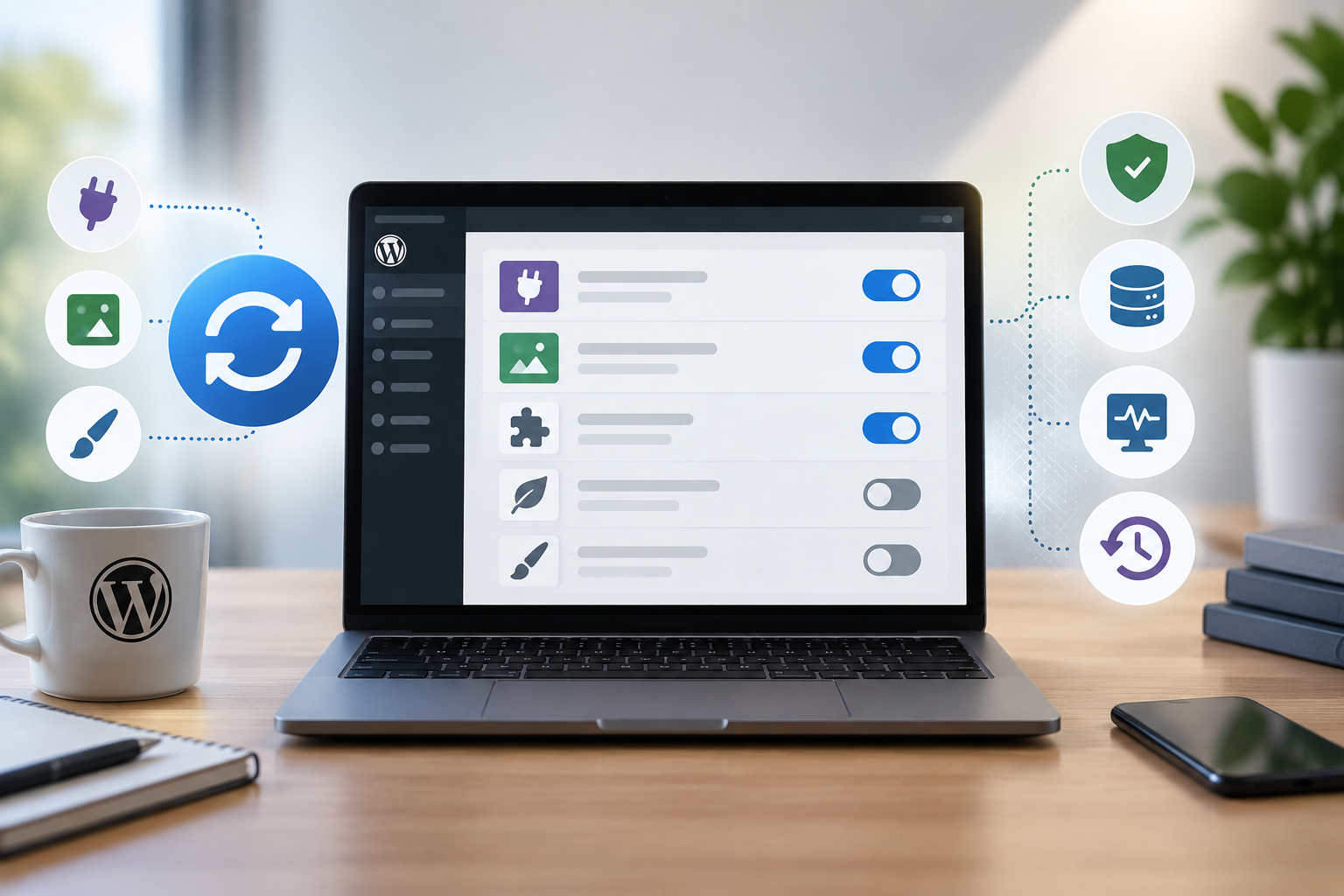
The short answer
For most blogs and brochure sites, turn on auto-update for simple, well-maintained plugins and themes. Automatic updates help security fixes reach your site sooner and reduce the chance that routine maintenance gets forgotten.
Use more caution with sites that process orders, take payments, manage memberships, or rely on heavily customized themes and page builders. For these sites, test updates first and keep a reliable rollback option available.
What can update automatically?
WordPress updates fall into three main groups:
- WordPress core: The software that runs the site. Security and maintenance releases may be handled automatically, depending on the site configuration. Major releases need more careful testing.
- Plugins: Add features such as contact forms, caching, analytics, ecommerce, and security controls. Plugin authors can release updates for security fixes, bug fixes, or new features.
- Themes: Control the site's design and templates. Updates can change layouts, styles, templates, or customizations.
Automatic updates can be enabled separately for individual plugins and themes. You do not need to choose the same setting for everything on a site.
Why enable auto-update?
Security fixes arrive sooner
When a plugin or theme has a known security issue, delaying an available update leaves the site exposed for longer. Automatic updates can reduce that delay, especially when no one is checking the dashboard every day.
Less routine maintenance
Manual updates take time. Someone needs to sign in, review available releases, run the updates, and check that the site still works. Automatic updates handle part of that work for sites where the risk is acceptable.
Fewer forgotten updates
A site can look healthy while several plugins are months behind. Automatic updates help prevent maintenance from depending entirely on memory or a recurring task.
What can go wrong?
Automatic updates change live code without a review window. Most updates work as expected, but problems can still occur.
Plugin conflicts
A new plugin release may conflict with WordPress core, another plugin, or a custom integration. The result could be an error, a missing feature, or a broken admin screen.
Broken layouts
Theme and page builder updates can affect templates, styling, widgets, or saved content. A page may still load while sections, forms, menus, or mobile layouts look wrong.
Problems that go unnoticed
An update can finish successfully while a key function stops working. For example, a contact form may stop sending messages, or a checkout flow may fail without producing an obvious WordPress error.
This is why automatic updates should be paired with backups and monitoring. The setting alone is not a maintenance plan.
What should you automate?
Use the site's purpose, the plugin's role, and the amount of customization as your guide.
Usually safe to automate
Automatic updates are often a reasonable choice for:
- Simple, well-maintained plugins on brochure sites
- Common plugins on personal blogs
- Plugins that are not connected to payments, orders, or member access
- Themes with minimal customization
You should still review update results and remove plugins that are no longer maintained or needed.
Better to update manually
Review and test updates before applying them to:
- WooCommerce
- Payment gateways
- Membership plugins
- Page builders
- Heavily customized themes
- Plugins connected to external services or custom code
For these components, use a staging site when possible. Check the important user journeys after the update, such as logging in, submitting a form, placing an order, or accessing member content.
Recommended approach by site type
| Site type | Recommended approach |
|---|---|
| Blog | Enable automatic updates for simple, well-maintained plugins and themes. Keep daily backups and check the site regularly. |
| Business site | Automate low-risk plugins. Review updates for forms, integrations, custom code, and the active theme. |
| Online store | Update WooCommerce, payment gateways, and checkout-related plugins manually after testing. Automatic updates may be suitable for unrelated low-risk plugins. |
| Agency-managed client site | Set a documented policy for each site. Use staging tests, backups, monitoring, and a rollback process for higher-risk updates. |
How to turn auto-update on or off
WordPress lets you manage automatic updates from the dashboard for many plugins and themes.
Plugins
- Sign in to WordPress.
- Go to Plugins > Installed Plugins.
- Find the plugin you want to manage.
- Use the Automatic Updates column to select Enable automatic updates or Disable automatic updates.
If the option is not available, the plugin, hosting provider, or site configuration may control updates another way.
Themes
- Go to Appearance > Themes.
- Select the theme you want to manage.
- Open the theme details.
- Select Enable automatic updates or Disable automatic updates, when the option is available.
Avoid making changes directly to a parent theme if the site uses a child theme or custom code. Test theme updates before applying them to a live site.
WordPress core
Core update settings may be managed from Dashboard > Updates or through your hosting provider and site configuration. Core updates can be controlled separately from plugin and theme updates, so review each setting rather than assuming one choice applies to everything.
You can enable auto-updates individually for each plugin and theme. For the full steps, see the official WordPress guide to plugin and theme auto-updates.
How to reduce the risk
Keep daily backups
Use backups that run independently of the update process. Store them somewhere separate from the hosting account when possible, and check that you can restore one. A backup is only useful if the restore process works.
Test on staging
A staging copy gives you a place to apply updates before they reach visitors. Test the site's key actions, including forms, navigation, login, search, ecommerce, and any important integrations.
Monitor uptime and key functions
Uptime monitoring can alert you when a site stops responding. For business-critical sites, also check important functions after updates. An available homepage does not prove that checkout or form submissions are working.
Keep a rollback plan
Know how to restore the site and how to identify the update that caused a problem. Record the update time, keep recent backups, and have access to the hosting control panel or backup system.
Use a maintenance schedule
If automatic updates are not suitable for a component, assign someone to review and test it on a regular schedule. Leaving updates manual without assigning responsibility creates the same maintenance gap that automatic updates are meant to solve.
A simple decision checklist
Turn on automatic updates when:
- The plugin or theme is simple and well maintained.
- The site can tolerate a short maintenance issue.
- You have recent backups.
- Someone will review the site after updates.
Use manual updates when:
- The component affects payments, orders, memberships, or checkout.
- The site uses a page builder or heavily customized theme.
- A failure could affect revenue or client operations.
- You do not yet have working backups, monitoring, or a rollback process.
For many sites, the right answer is a mixed policy: automate low-risk components and manually test the parts that matter most to the business.